
Show a Google Drive folder on your site, with no API key.
Paste a sharing link into a shortcode, and your visitors can browse the folder without leaving your page. Subfolders open in place, files preview in a window on top of your page, and photo folders can show as a gallery. You don’t need a Google API key, a Google sign-in, or any extra setup.
- Browse folders and subfolders inside your page, with a Back button and a breadcrumb trail
- Preview files in a window on your page, and download the original with one click
- Show photos as a masonry or square-tile gallery with a full-size lightbox
- Load big galleries in batches of 24 tiles, with a Load more button
- Keep folder listings in a server cache, refreshed in the background
- See in plain words why a folder won’t load, shown only to editors and admins
- Works in light and dark mode
Feature sections
File browser
The file browser is the default view. It shows the folder’s contents as a list, and clicking a subfolder loads that folder in place. Visitors never leave your page.
A Back button and a breadcrumb trail let visitors retrace their steps. Clicking a file opens a preview window on top of your page. Visitors close it with the × button, the Escape key, or a click outside the window. The preview also has a download button. It downloads the original file, and exports Google Docs, Sheets and Slides as PDF, XLSX and PPTX.
You control the look with these options under Settings → GDrive Embed:
- Default Height (px) sets the height of the listing area.
- Show Title Bar shows the optional title above the browser.
- Show “Open in Drive” Link adds a link to the original folder in Google Drive.
- Allow Fullscreen Preview lets visitors expand a file preview to full screen.
- Border Radius (px) rounds the corners of the widget.
Any shortcode attribute (height, title, show_link, allow_fullscreen) overrides the setting for that one embed.
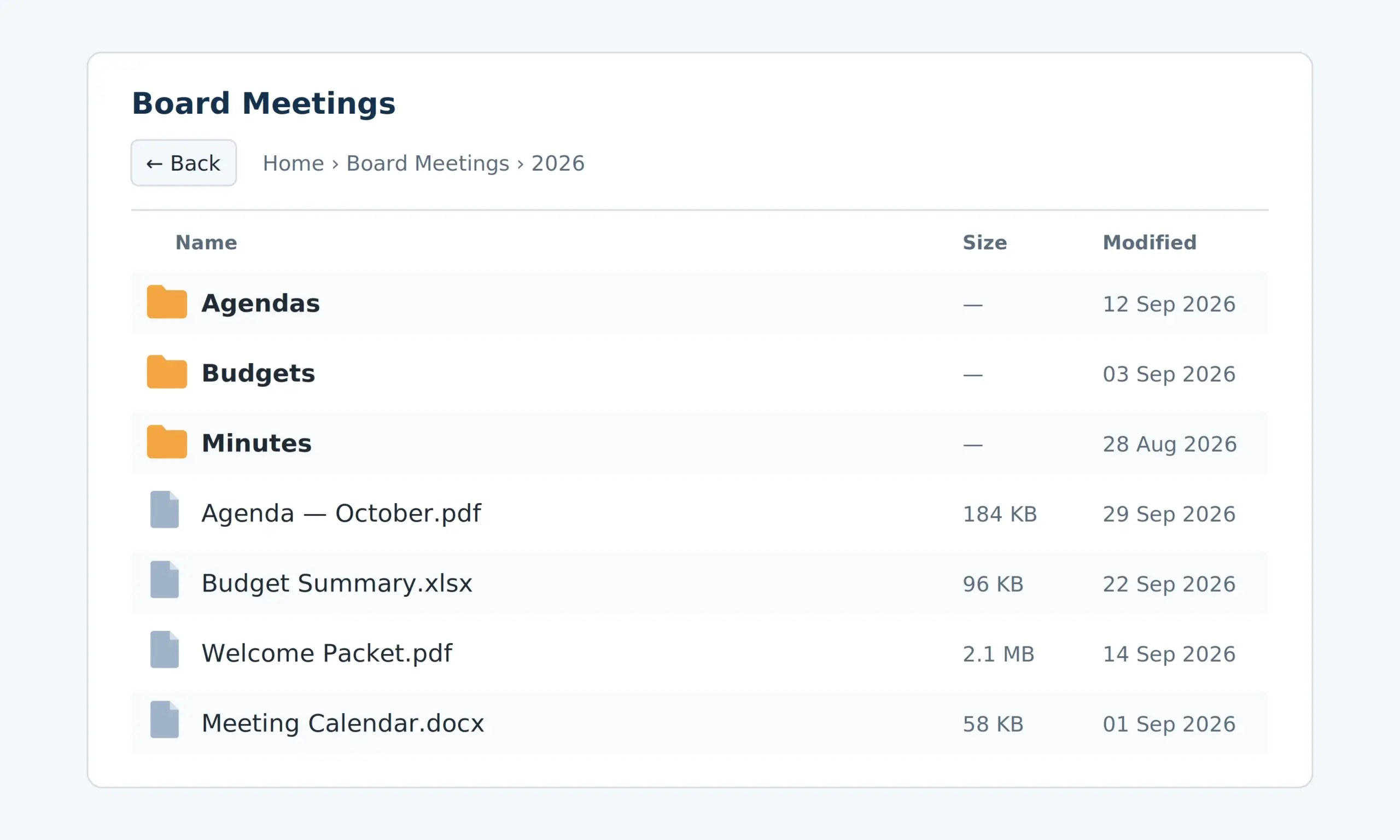
Visitors open subfolders in place and use the breadcrumb trail to go back.
Gallery view
Add view=”gallery” to the shortcode and the folder shows as pictures. Images appear as tiles, and each subfolder appears as a tile with the first image found inside it. If a folder holds only subfolders, the plugin looks one level deeper and uses the first image in its first subfolder. The folder name sits on a solid bar at the bottom of the tile.
Clicking an image opens a full-size lightbox with next and previous buttons. The left and right arrow keys work too, and the lightbox steps through every image in the folder, including ones you haven’t loaded yet. Gallery view hides files that aren’t images. Switch back to view=”list” to see them.
Choose a tile style with layout:
- layout=”masonry” (the default) keeps each image’s own proportions.
- layout=”thumbnail” makes a uniform square grid and crops each image to fit.
Tiles load in batches. The first 24 appear, and a Load more button reveals the rest, with a “Showing X of Y” count. Set the batch size with Gallery Tiles Per Page (4 to 200) or with per_page on one embed. Set the number of columns with Gallery Columns (images across), which has separate values for mobile, tablet and desktop: 3, 4 and 6 by default.
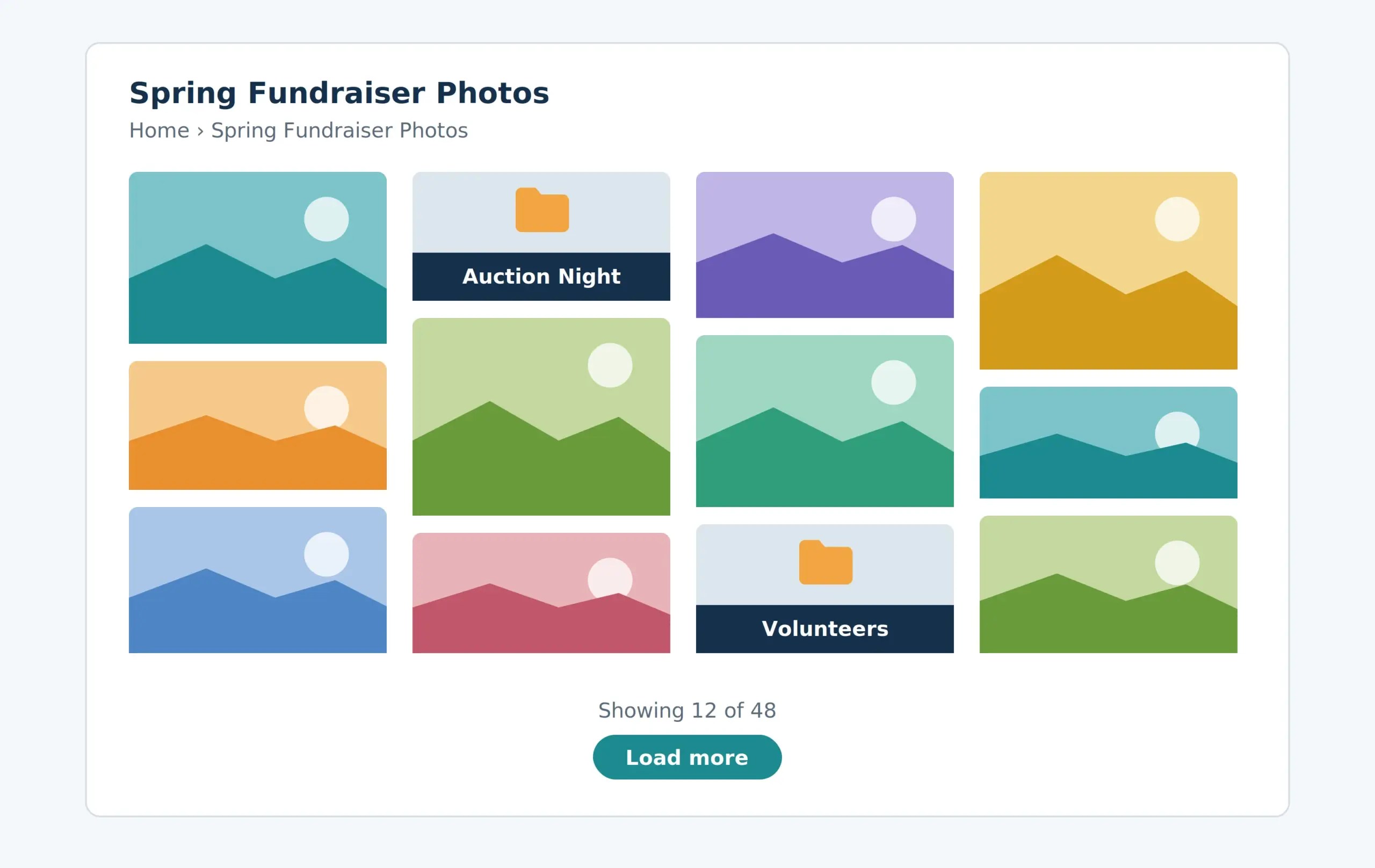
Gallery view shows photos and folders as tiles, 24 at a time by default.
Background cache warming
Google’s folder pages are fetched by your server, so a visitor who lands on a cold cache waits for that fetch. Folder listings are kept in a server cache for Cache Duration (minutes), which is 5 by default. Background cache warming refreshes the cache before a visitor needs it.
When Enable Background Warming is on, the plugin re-checks the folders it has seen and refreshes their cached listings. Requests are spread a few seconds apart, and the cache is only ever updated, never cleared. It also runs once after a plugin update.
- Enable Background Warming turns the feature on or off. It is on by default.
- Check Frequency sets how often folders are checked, from 15 to 1440 minutes. The default is 60.
- Manual Refresh has an Update Cache Now button for an immediate refresh.
Warming only works while Cache Duration (minutes) is above 0. With caching off, there is nothing to warm.
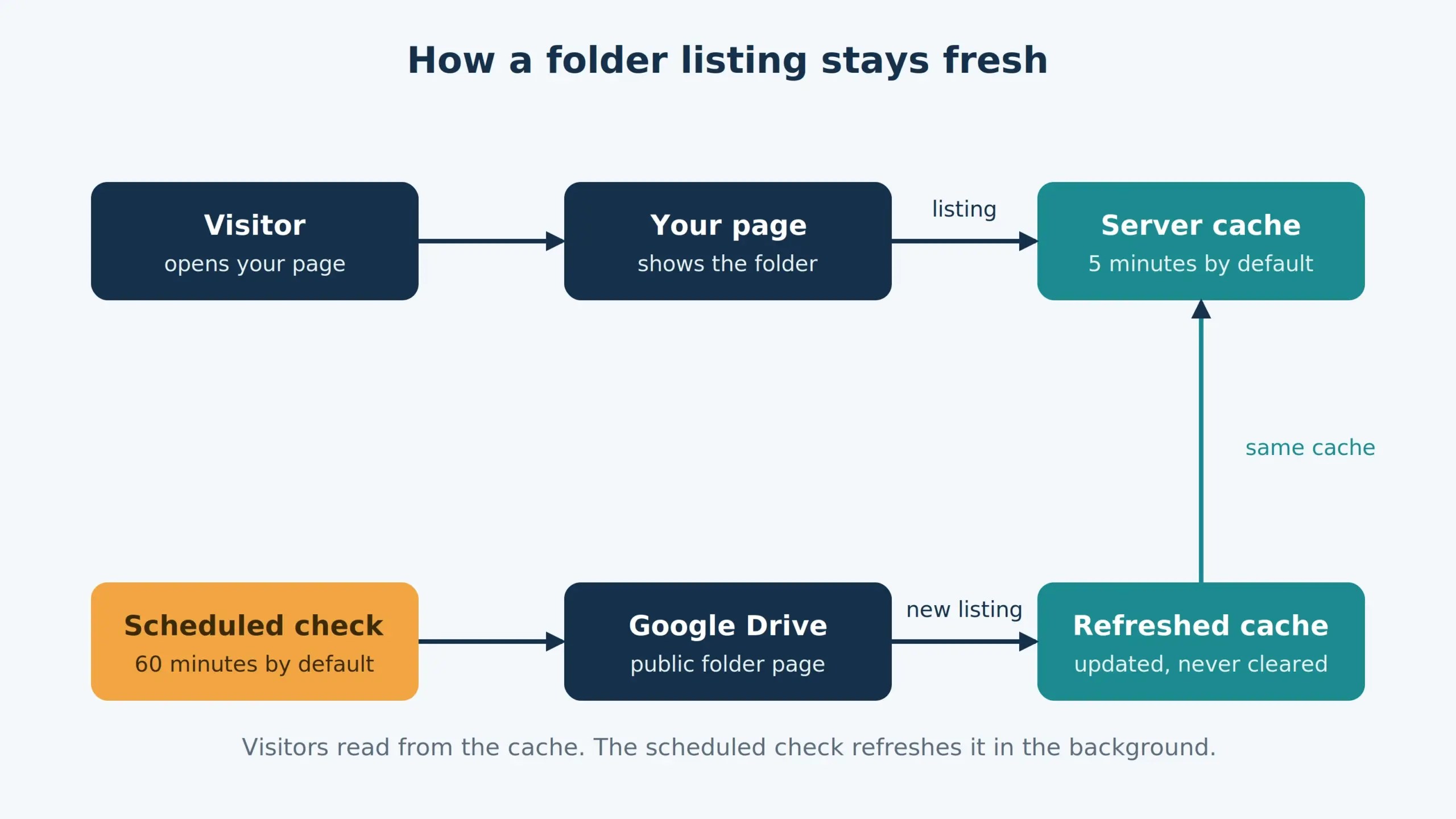
The scheduled check refreshes the cache, so visitors are served from it instead of waiting on Google.
Clear error messages
When a folder won’t load, people who can edit posts see the reason in plain words, right where the embed would be. Public visitors see a clean empty gallery instead of an error.
The messages cover these causes:
- The folder isn’t shared publicly. The message tells you to set it to Anyone with the link, Viewer.
- The folder can’t be found, because it was deleted or the link is wrong.
- Google is rate-limiting requests. This usually clears on its own.
- The site couldn’t reach Google, or Google sent an empty reply. This is usually temporary.
- The folder loaded but no files could be read, which may mean Google changed its page format.
A warning notice in wp-admin shows how many folders failed recently, with a View details link. You can dismiss it. The settings page also has a section called 6. Status — Recent Folder Failures. It lists each failed folder, newest first, under the headings When, Folder, Page and Problem. It keeps the 10 most recent failures, and a problem drops off the list once it is resolved. These details stay on your site and are never sent in error reports.
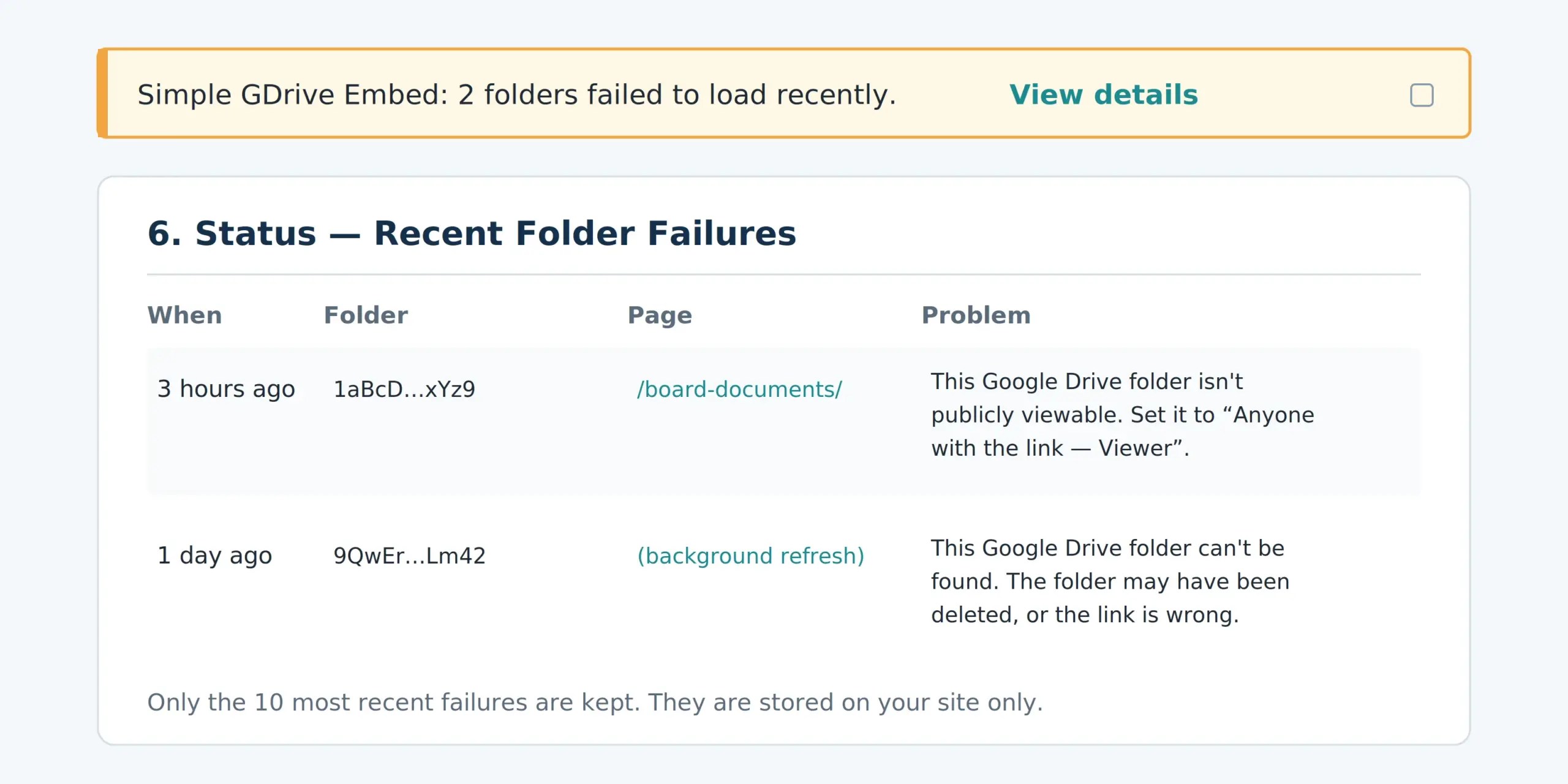
Editors see what went wrong and how to fix it. Visitors see an empty gallery.
Built for speed and security
Every point below comes from the plugin’s code.
Speed
- Folder listings are cached on your server for the Cache Duration (minutes) you set. The default is 5.
- Background warming refreshes cached listings on a schedule, with requests spaced a few seconds apart.
- Folder-tile thumbnails load as tiles scroll into view, and at most 4 lookups run at once. This keeps a busy gallery from tying up your host’s PHP workers.
- Gallery tiles render in batches, 24 at a time by default.
- Image tiles use loading=”lazy”, so the browser defers images that are off screen.
Security
- Both folder-browsing requests check a WordPress nonce before they do anything.
- The Update Cache Now button works only for users who can manage options, and it checks its own nonce.
- Folder IDs are sanitized and must match letters, numbers, hyphens and underscores. The shortcode accepts only a Google Drive folder link.
- Settings are sanitized on save. Tiles per page, columns and check frequency are held to fixed ranges.
- Output on the settings page and in the shortcode markup is escaped.
- Error messages for a bad link show only to people who can edit posts. Public visitors don’t see them.
- Error reports are off until you turn on Share Anonymous Error Reports. When on, a report holds the plugin, WordPress and PHP versions, an anonymous per-site ID and the type of failure. It never holds folder names, folder IDs, file names or your site’s address.
Failure details shown in the Status view are stored on your site only. They are never sent in error reports.
Compatibility
Google Drive sharing. The folder must be shared as Anyone with the link, with the Viewer role. A private folder shows an error. Individual files have their own sharing settings, so a file that previews blank may need the same setting. Some Google Workspace administrators block sharing outside their organisation, which stops the plugin from reading those folders.
Your server. Your host needs PHP’s DOM and libxml extensions, which are standard on major hosts. It also needs to make outbound HTTPS requests to drive.google.com. Background warming uses WordPress’s built-in scheduler (WP-Cron). The plugin is tested on WordPress 7.1 and PHP 8.5, the current stable versions.
Security headers. If your site sends a Content Security Policy, it needs to allow Google Drive for the file preview window and for thumbnails and downloads. The plugin loads thumbnails from drive.google.com, and exports Docs, Sheets and Slides from docs.google.com.
Themes. The browser and gallery have a dark-mode style that follows the visitor’s device setting. Add your own CSS class with the class attribute to style one embed.
Other embeds. Shortcodes
[gdrive_embed]and
[simple_gdrive_embed]are the same thing. You can place several on one page.
Self-managed servers. If you run your own Ubuntu or Debian server with root access, the companion plugin Simple GDrive for Rclone reads folders from a local rclone mount instead of Google’s public page. It’s a separate plugin with its own shortcode and settings.
Settings, requirements and installation
Find every option under Settings → GDrive Embed. The settings page also has full usage instructions and a troubleshooting table.
| Section | Option | Default |
|---|---|---|
| Default Behaviour | Default Height (px) | 480 |
| Default Behaviour | Show Title Bar | On |
| Default Behaviour | Show “Open in Drive” Link | Off |
| Default Behaviour | Allow Fullscreen Preview | On |
| Default Behaviour | Cache Duration (minutes) | 5 |
| Default Behaviour | Border Radius (px) | 8 |
| Gallery & Diagnostics | Gallery Tiles Per Page | 24 (range 4–200) |
| Gallery & Diagnostics | Gallery Columns (images across) | 3 mobile, 4 tablet, 6 desktop (each 1–12) |
| Gallery & Diagnostics | Share Anonymous Error Reports | Off |
| Background Cache Warming | Enable Background Warming | On |
| Background Cache Warming | Check Frequency | 60 minutes (range 15–1440) |
| Background Cache Warming | Manual Refresh | Update Cache Now button |
Requirements
- WordPress 5.6 or newer, tested up to WordPress 7.1
- PHP 7.4 or newer, tested on PHP 8.5, with the DOM and libxml extensions
- A Google Drive folder shared as Anyone with the link
Installation
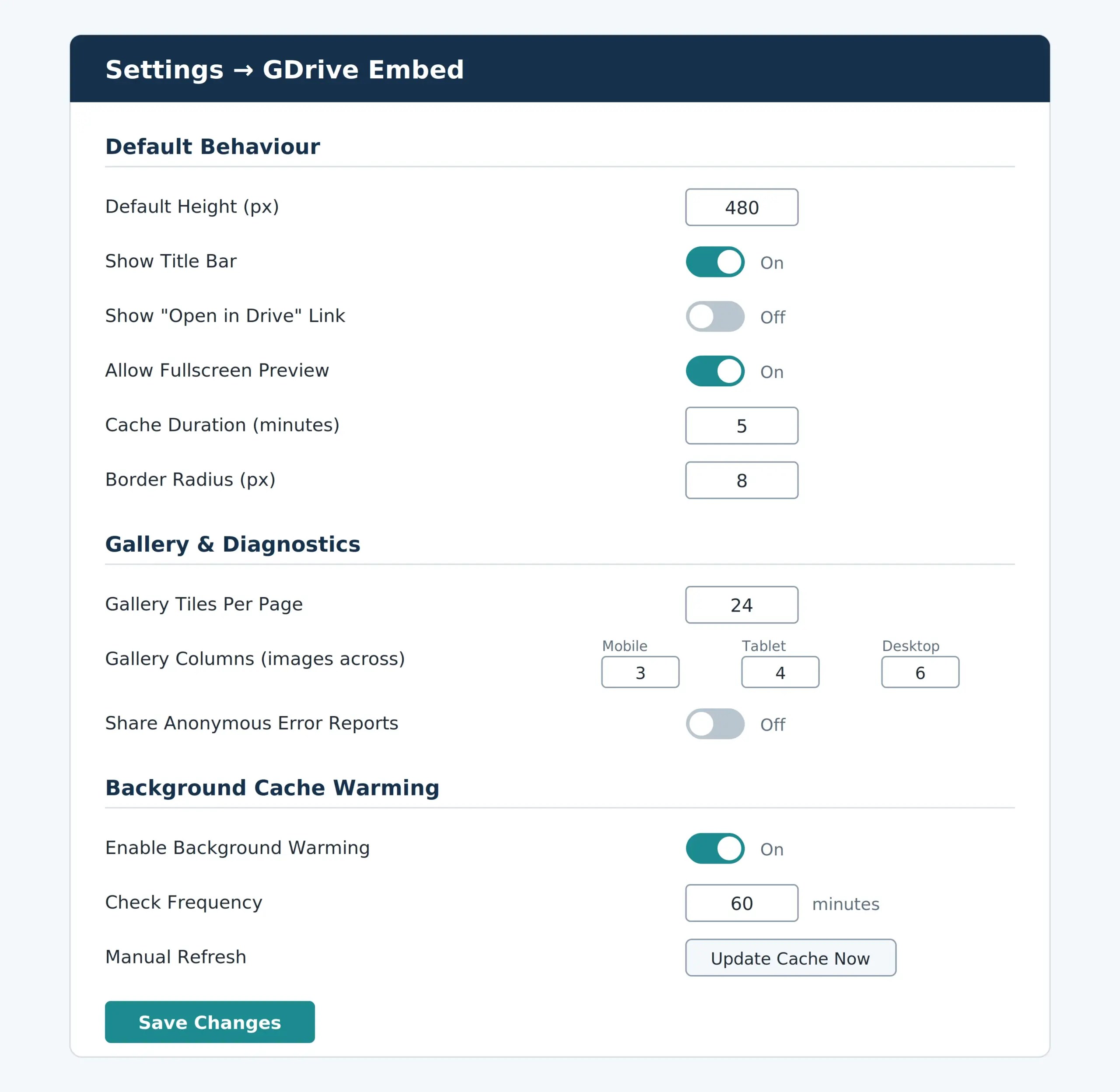
Every option sits under Settings → GDrive Embed.
1. Download the plugin ZIP from the button below.
2. In your WordPress admin, go to Plugins → Add New Plugin → Upload Plugin.
3. Choose the ZIP, click Install Now, then click Activate Plugin.
4. In Google Drive, right-click your folder, choose Share, and set General access to Anyone with the link with the Viewer role.
5. Copy the link, then add
[gdrive_embed url="YOUR_LINK"]to a post or page. For photos, add view=”gallery”.
After you install it, updates arrive from garryheath.com and appear on your Plugins screen like any other update.
Download
Version 2.6.1. Requires WordPress 5.6 and PHP 7.4.
FAQ
Do I need a Google API key or account?
No. The plugin reads the same public folder page that Google Sites uses, so there’s no API key, service account or sign-in. The folder must be shared as Anyone with the link.
Why does my embed say “Could not load folder”?
The usual cause is that the folder isn’t shared publicly. Set General access to Anyone with the link, then reload. Your cache may need to expire first, or you can set Cache Duration (minutes) to 0 for a moment.
How do I see changes I made in Google Drive?
Changes appear after the cache expires, which takes 5 minutes by default. For an immediate refresh, click Update Cache Now under Background Cache Warming.
Can I show private folders?
No. The plugin reads public folders only and has no sign-in to Google.
How do I find out why a folder isn’t loading?
If you can edit posts, the embed shows the reason in plain words on the page. A notice in wp-admin also lists recent failures, and the 6. Status — Recent Folder Failures section of the settings page shows each one with the page it’s on.
Does the plugin send data anywhere?
It sends nothing to us unless you turn on Share Anonymous Error Reports. When on, a report holds version numbers, an anonymous ID and the failure type, and never folder names, file names or your site’s address. Your visitors’ browsers and your server do contact Google Drive to load folders, thumbnails and previews.
What happens if I deactivate it?
The shortcode stops rendering the browser on your pages. Your Google Drive files aren’t touched.